Connect to your raspberry pi via ssh. On the prompt type sudo apt update followed by ENTER.
Then type : sudo apt full-ugrade

After suitability checking process is completed, the prompt would ask you either to continue or not. Type Y followed by ENTER to continue the installation.
It may take couple minutes for installation to be completed. Now we need to remove modules are not needed by typing : sudo apt autoremove on the prompt followed by ENTER.

After finding which modules that are not needed, the prompt will ask a confirmation to continue the process or not. Just type Y followed by ENTER to confirm.
We need to clean the cache. Type sudo apt autoclean followed by ENTER.
Now we are ready to install postgresql database engine. On the prompt type : sudo apt install postgresql followed by ENTER.
After checking the suitability, a confirmation prompt appears to continue the installation process or not. Type Y followed by ENTER.
To give our pi user an access inside postgresql , first we need to switch user from pi to postgres user. postgres is a default root user of the postgresql database. Type sudo su postgres on our pi user prompt followed by ENTER at the prompt.

You can see that our prompt appearance has changed to postgres@kiwisoft:/home/pi.
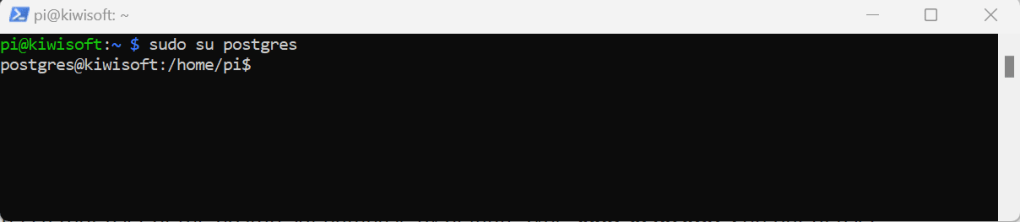
Next step is to get into postgresql database. Type psql on the prompt followed by ENTER. The prompt now changes from postgres@raspberrypi:/home/pi to postgres=# which is a database prompt.
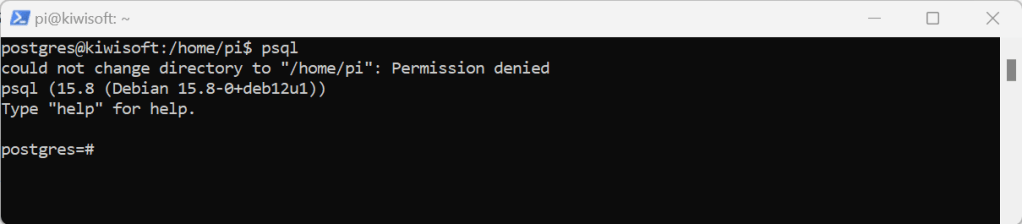
To clean the screen, type \! clear followed by ENTER on the postres=# prompt.

To enable our raspberry pi user to access our postgresql database we have to create the same pi user and pi password on our postgresql database. On database prompt type CREATE USER pi WITH ENCRYPTED PASSWORD ‘your-raspberrypi-pi-user-password’; followed by ENTER.

Next is to create a new database and name it as pi for our pi user. It is necessary to be done otherwise the pi user won’t be able to access the database engine. On database prompt type : CREATE DATABASE pi; followed by ENTER.

Now we create another database, in my case i choose kiwisoft for my database. On the postgres-# prompt type CREATE DATABASE kiwisoft; followed by ENTER.

To make sure that kiwisoft database has been succesfully created, type \l on the database prompt. This postgresql database will then show the list of existing database including the kiwisoft database. You also see pi database there.

Type \q to go back to the previous prompt.
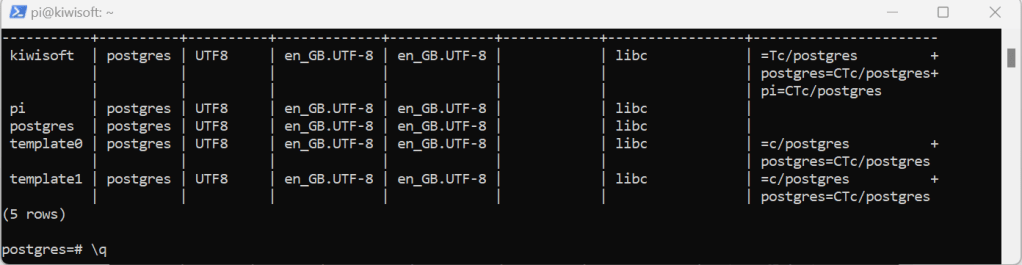
After we convince kiwisoft database is created, we must give all permission to our pi user on that newly created database. Type Type q to go back to postgres-# prompt. Then on postgres-# prompt GRANT ALL PRIVILEGES ON DATABASE kiwisoft TO pi; followed by ENTER. Then type GRANT ALL ON SCHEMA public TO pi; followed by ENTER.

Now, it is time to test if the pi user has permission to access postgres database engine as well as kiwisoft database. On postgres-# prompt type exit followed by ENTER. Type exit again followed by ENTER to go back to pi@kiwisoft prompt.
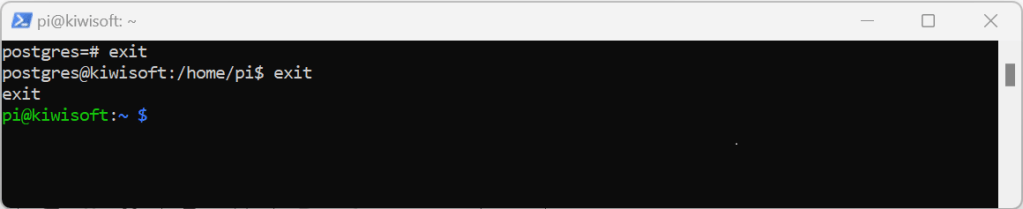
On the pi@kiwisoft prompt type psql followed by ENTER.


The p=> is your postgresql prompt. On that prompt type \c kiwisoft because we are going to connect pi user to kiwisoft database.
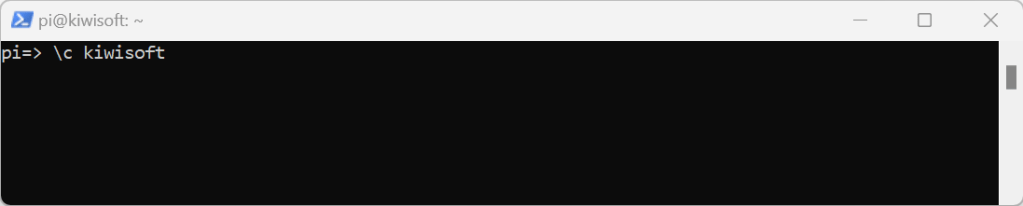
You will get prompt message once your pi user is connected to the database.

The kiwisoft=> prompt means you are currently connected to kiwisoft database. Let create our first table. We name it measurements.
CREATE TABLE measurements (
  id BIGSERIAL PRIMARY KEY,
  serialnumber VARCHAR(25),
  temperature FLOAT,
  humidity FLOAT,
  status BOOL DEFAULT false,
  created TIMESTAMP,
  updated TIMESTAMP
);
Copy above sql script and paste it on the kiwisoft=> prompt.

To view all the table from the current database, just type \d on the prompt followed ENTER.
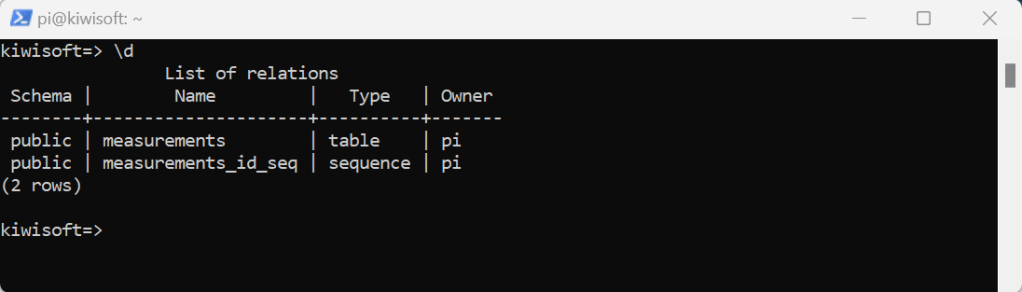
On the same database prompt, copy and paste the following sql query. We are going to test the insert operation.
insert into measurements(serialnumber,temperature,humidity)values('a3bc2ff601',14.5,35.7);
Let see if your insert operation was truly succesful. Copy the following sql query below then paste it on the prompt followed by ENTER.
select * from measurements
Copy and paste the following sql query to run update operation.
update measurements set temperature = 17.33, humidity = 20.3 where id = 1;Type \! clear to clear the screen. After that try the following query to delete
delete measurements where id = 1;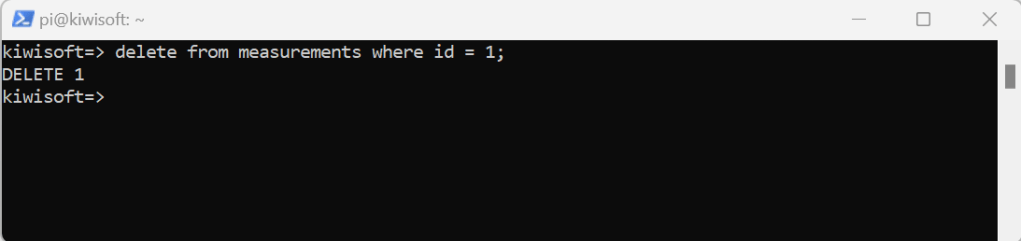
Type \q to go back to pi@kiwisoft prompt.