This article is a continuation from my previous article on SETTING UP REYAX RYRL998 WITH FTDI232 . We are going to use the second Reyax module we had setup on previous article to be connected to our Raspberry Pi 4 B.
Please the following information for the wiring between Reyax RYRL998 module to Raspberry Pi 4 B:
| REYAX RYRL998 | RASPBERRY PI 4 B |
|---|---|
| RX | TX – GPIO 14 (PIN 8) |
| TX | RX – GPIO 15 (PIN 10) |
| RST | GPCLKO – GPIO 4 (PIN 7) |
| VCC | PIN 1 |
| GND | PIN 9 |
Below is the Raspberry Pi 4 B GPIOs and PINs schematics.

This is how the wiring supposes to look like.

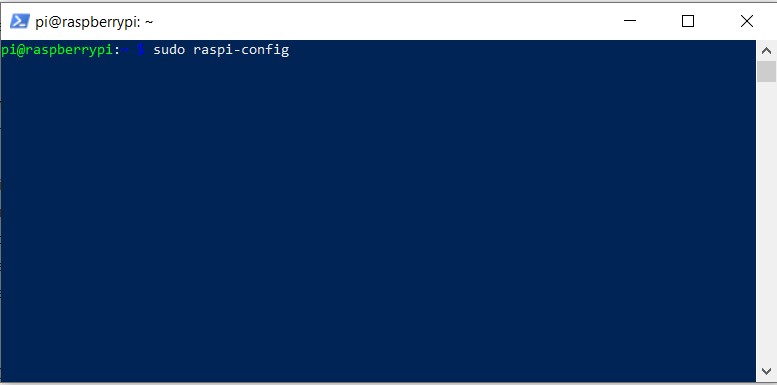
After the wiring is completed, we need to enable the serial port on Raspberry Pi 4 B. After connecting to your Raspberry Pi 4 B , on the prompt type : sudo raspi-config.
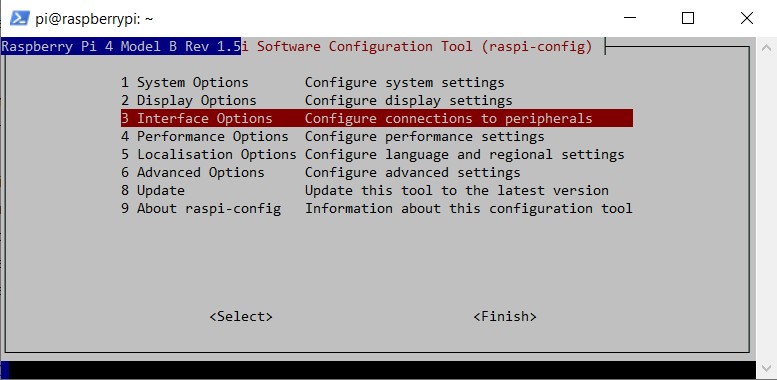
On the Software Configuration Tool, select Interface Options or number 3, click ENTER.
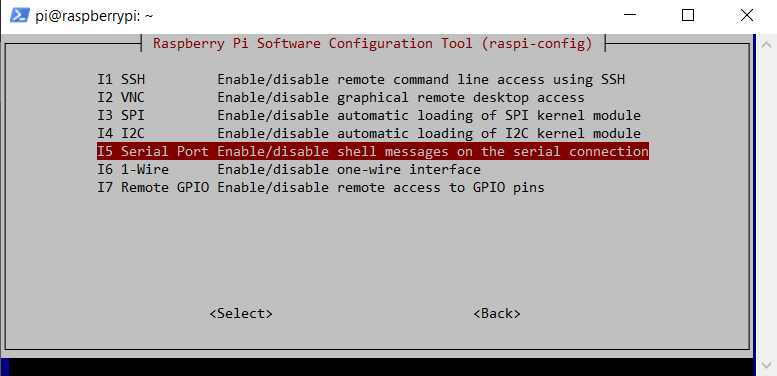
On the next menu, select Serial Port, click ENTER.
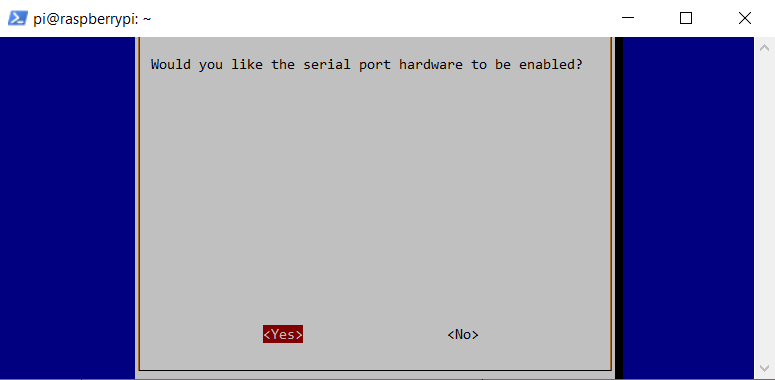
Select NO, click ENTER.

Select YES, then click ENTER.
Click OK, followed by ENTER.
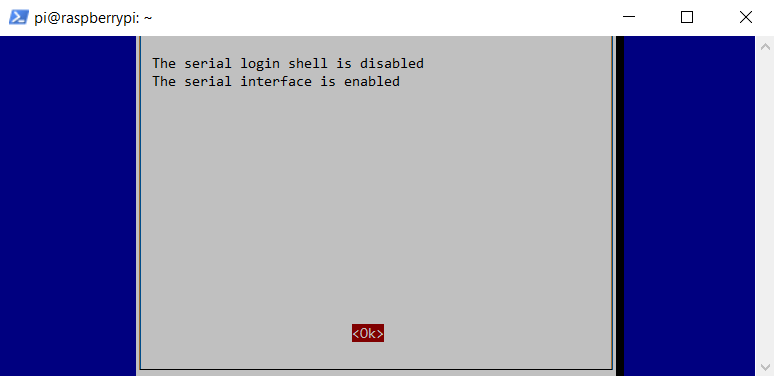
Select FINISH to go back to the prompt.

On the prompt, type sudo nano /boot/config.txt
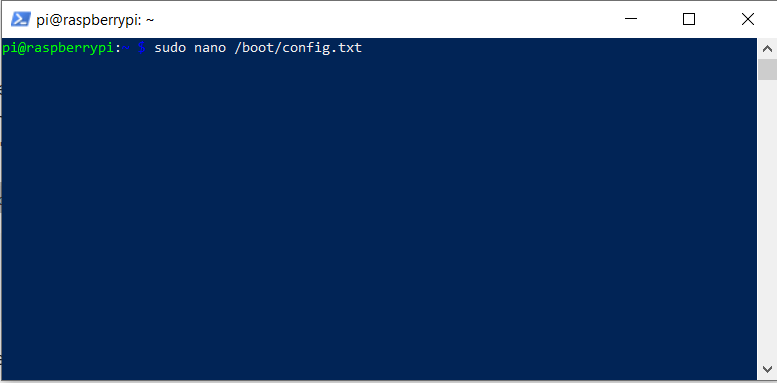
At the end of the page, add the following statements :
disable-bt=1
enable-uart=1
Click CTRL+O to overwrite, then CTRL+X to go back to the prompt.

Time to disable bluetooth service. On the prompt type : sudo systemctl disable hciuart.service

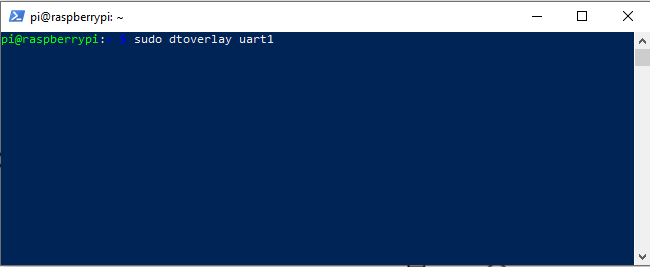
To make sure the uart1 is enabled with the device tree facility before the code is running, type sudo dtoverlay uart1.
To test our raspberry pi 4 B able to receive the message from REYAX, we must create a python script. We are going to use python build in serial library. On the prompt type sudo nano test.py. Copy the following code below and click CTRL+O to save, then CTRL+X to exit. Note: the baud rate may vary and you match against the baud rate of the sender. In this scenario i am using 9600 for the baud rate because my data sender use the same number.
import serial

try:
     fabkit = serial.Serial('/dev/ttyS0',9600)
except:
  print("Failed to connect")
  exit()

while 1:
  line = fabkit.readline()
  print(line)

fabkit.close()
CTRL+O to overwrite, then CTRL+ X to go back to the prompt.

 John Hadikusumo